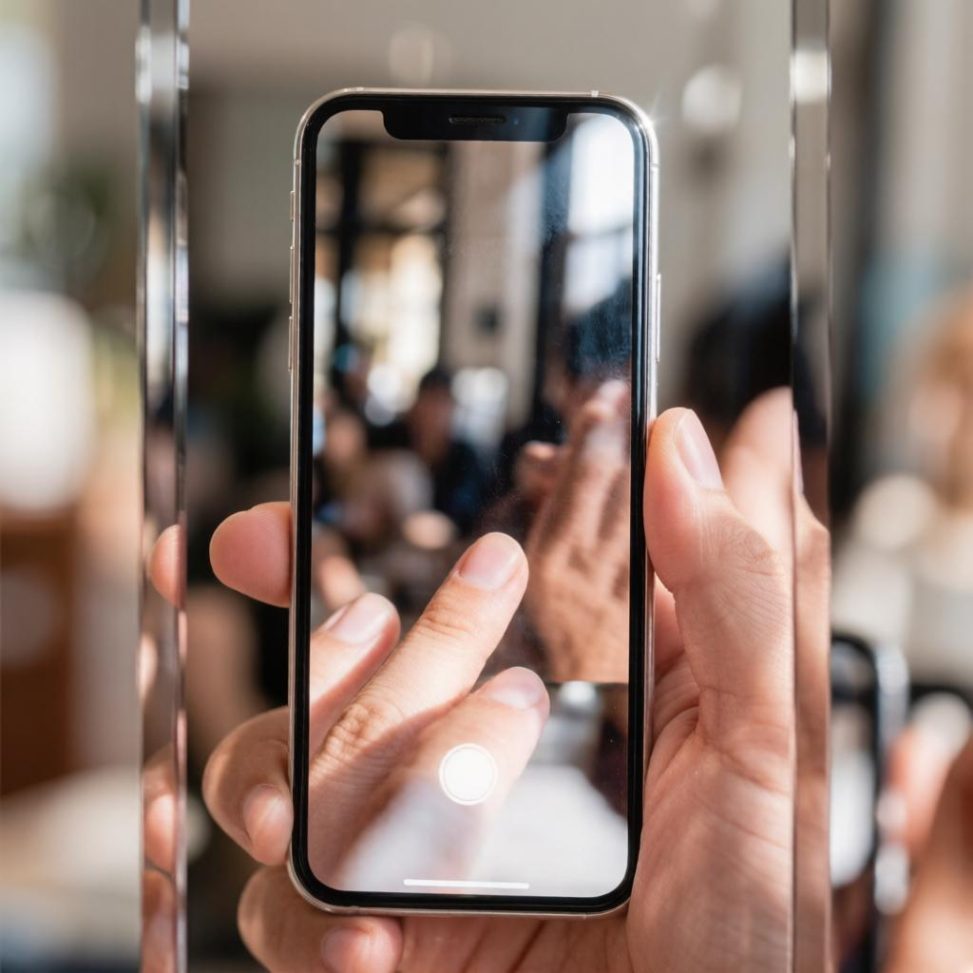
If your iPhone camera won’t focus, start by cleaning the camera lenses, removing any case or lens protector, and tapping the subject on the screen to adjust the focus. A temporary camera glitch, an accessory interfering with the camera, or a problem with a specific lens can also cause blurry photos.
If your iPhone focuses on nearby objects but not on things farther away, test the main camera in good lighting and compare it with the other available cameras. Persistent distance-focusing problems may indicate a camera hardware issue.
Before assuming your iPhone needs repair, try the following troubleshooting steps.
Why Is My iPhone Camera Not Focusing?
Several different problems can make an iPhone photo look blurry.
| Possible cause | Typical symptom |
|---|---|
| Dirty or obstructed lens | Photos appear blurry or hazy |
| Case, lens protector, or magnetic accessory | Focus or image stabilization may be affected |
| Incorrect focus point | Camera focuses on the background instead of the subject |
| Subject too close | Camera struggles to focus at a short distance |
| Temporary software issue | Autofocus behaves inconsistently |
| Camera hardware problem | One camera consistently fails to focus |
It is also important to distinguish out-of-focus blur from motion blur.
Out-of-focus blur occurs when the camera focuses at the wrong distance. Motion blur happens when the phone or subject moves during the exposure. A blurry picture therefore does not automatically mean the autofocus system is broken.
How to Fix an iPhone Camera That Won’t Focus
1. Clean the Camera Lenses
Fingerprints, dust, grease, or other debris on the camera glass can reduce image clarity and make photos appear as though the camera is not focusing correctly.
Inspect each camera lens and gently wipe it with a clean, soft microfiber cloth. Then reopen the Camera app and take another photo.
Avoid abrasive materials or aggressive cleaning products that could damage the lens covering.
Apple includes lens cleaning among its basic troubleshooting recommendations when an iPhone camera isn’t working correctly.
2. Remove the Case and Camera Accessories
Remove anything that covers or sits close to the camera area and test the phone again.
This can include:
- the phone case;
- camera lens protectors;
- magnetic accessories;
- external camera lenses.
Some accessories can partially obstruct a lens or interfere with camera systems that rely on autofocus and optical image stabilization.
That does not mean every MagSafe accessory will cause camera problems. The goal is simply to eliminate accessories as a possible cause by taking a few test photos without them.
3. Tap the Screen to Adjust Focus
The iPhone Camera app normally focuses automatically, but you can tell it which subject should be sharp.
To do this:
- Open the Camera app.
- Point the iPhone at your subject.
- Tap the subject on the screen.
- Wait for the camera to adjust.
- Take a test photo.
If the camera keeps changing focus, touch and hold the focus area until AE/AF Lock appears. This locks the selected focus and exposure settings until you change them or leave the mode.
Apple’s iPhone Camera guide explains how tap-to-focus and AE/AF Lock work.
AE/AF Lock can help when the camera is focusing on the wrong part of the scene, but it cannot repair a malfunctioning autofocus mechanism.
4. Change the Distance From Your Subject
If the problem happens only when photographing something very close, move the iPhone slightly farther away.
Every camera has a minimum focusing distance. If an object is closer than the camera can focus, it will remain blurry even if you tap it on the screen.
On supported iPhone models, Macro mode can help with close-up subjects by using the Ultra Wide camera when appropriate.
Try moving back a few inches, tapping the subject again, and checking whether it becomes sharp.
This step mainly helps with close-focus problems. If your iPhone focuses perfectly nearby but distant objects remain blurry, use the distance-specific checks below.
5. Restart Your iPhone
A temporary software or Camera app issue can sometimes cause autofocus to behave inconsistently.
Restart the iPhone, reopen the Camera app, and test the same subject again.
A restart is a simple troubleshooting step and does not erase your data. However, it will not fix physical damage or a defective camera component.
6. Update iOS
Check whether an iOS update is available:
Settings → General → Software Update
Software updates can contain fixes for camera behavior and other system issues.
After updating, test the camera again under the same conditions.
An update is worth trying, but it should not be treated as a guaranteed repair for every autofocus problem. Avoid installing beta software simply as a troubleshooting method.
7. Test Different Cameras and Lenses
If the problem continues, determine whether it affects every camera or only one.
Test:
- the rear camera;
- the front camera;
- 0.5x, 1x, and other available options;
- Photo mode in Apple’s standard Camera app.
Not every iPhone has the same cameras, and selecting a different zoom level does not always mean a separate physical lens is being used. Some zoom options rely partly or entirely on digital processing.
For the most useful comparison, photograph the same stationary object in good lighting with the available camera options.
If one camera consistently produces blurry images while the others focus normally, that information can help identify a possible hardware problem.
Why Won’t My iPhone Camera Focus on Faraway Objects?
A more specific autofocus problem occurs when the iPhone can focus on close objects but distant subjects always remain blurry.
Test it systematically:
- Open Apple’s Camera app.
- Choose Photo mode.
- Select the main 1x camera.
- Point the iPhone at a stationary distant object in bright daylight.
- Tap the distant object on the screen.
- Take a photo and inspect it in Photos.
- Compare the result with other available cameras if possible.
Possible causes include an incorrect focus point, an accessory interfering with the camera, a temporary software issue, or a problem with the autofocus system of a particular camera module.
If the main camera repeatedly focuses only at close range while distant objects remain blurry after cleaning the lens, removing accessories, restarting the phone, and testing in good lighting, a hardware problem becomes more plausible.
That does not necessarily mean a specific autofocus motor has failed. The exact cause cannot be determined reliably without diagnostics.
When Does an iPhone Camera Need Repair?
Consider professional service if:
- photos remain out of focus in good lighting;
- autofocus continuously searches without locking;
- one camera consistently cannot focus;
- distant subjects stay blurry after basic troubleshooting;
- the problem began after the iPhone was dropped or damaged;
- focus problems appeared after a previous camera repair;
- removing accessories, restarting, and updating iOS did not help.
Apple notes that nongenuine or improperly installed camera components can cause problems with focus and other camera functions.
If basic troubleshooting does not resolve the issue, contact Apple Support or an Apple Authorized Service Provider for diagnosis.
Do not assume the entire camera assembly automatically needs replacement. The required repair depends on the iPhone model and the actual cause of the problem.
If your iPhone camera isn’t focusing, start with the simplest fixes: clean the lenses, remove accessories, tap the subject to adjust focus, and restart your phone. If distant objects remain blurry, compare the available cameras in good lighting to see whether the problem affects one lens or several. When focus problems persist after these checks and an iOS update, Apple Support can help determine whether the camera needs servicing.